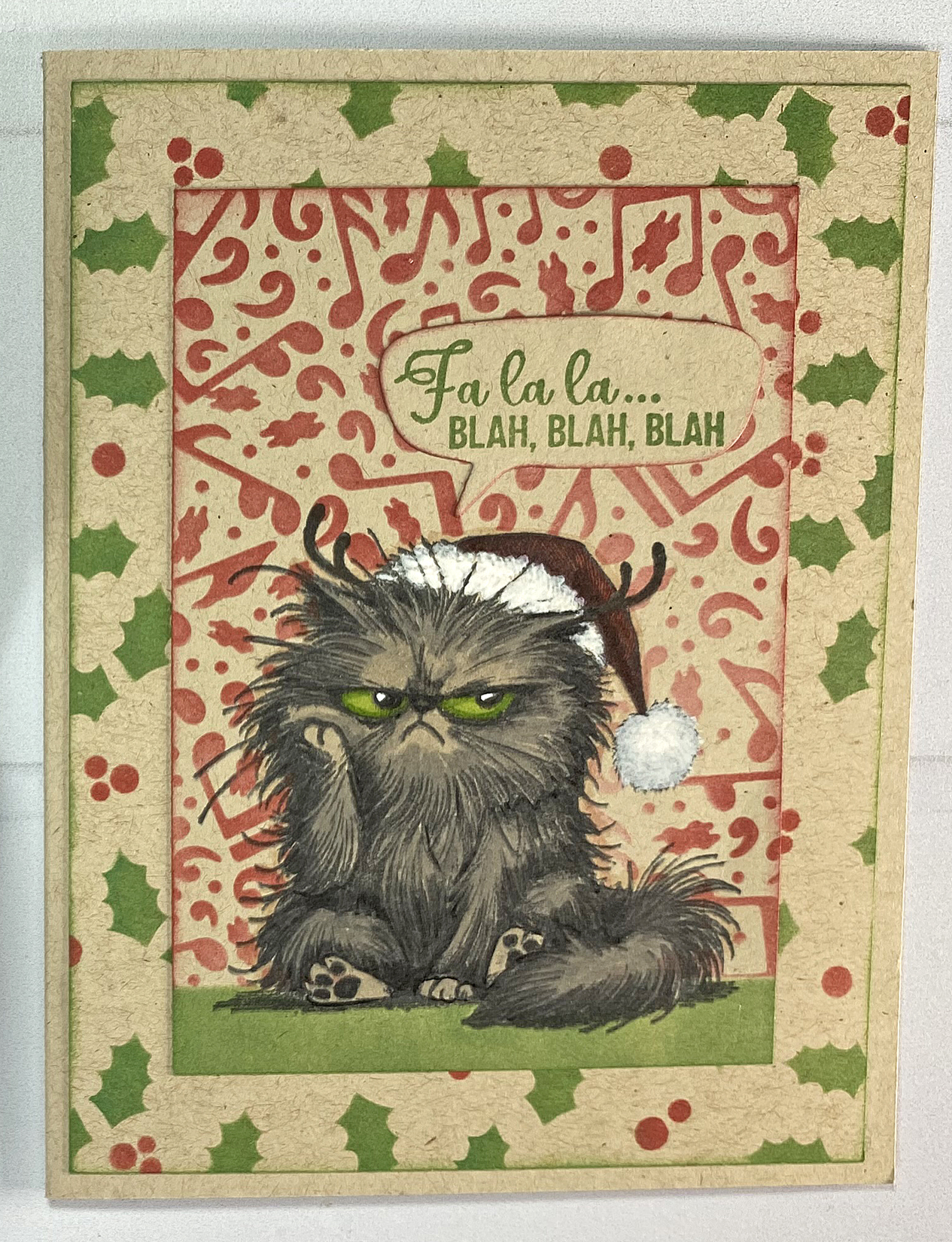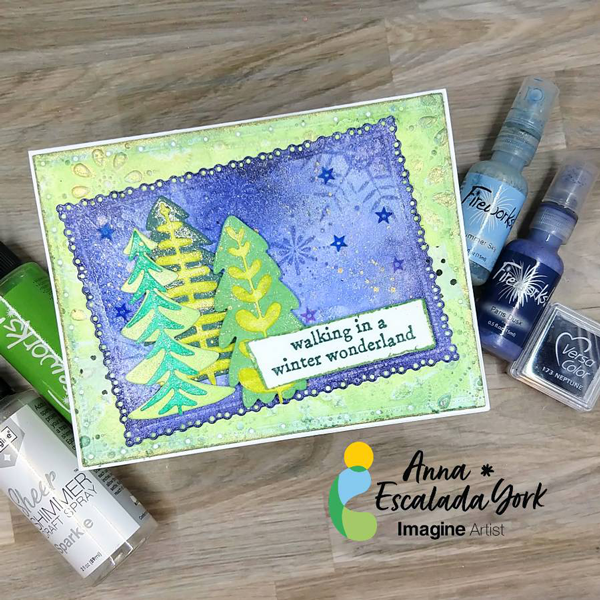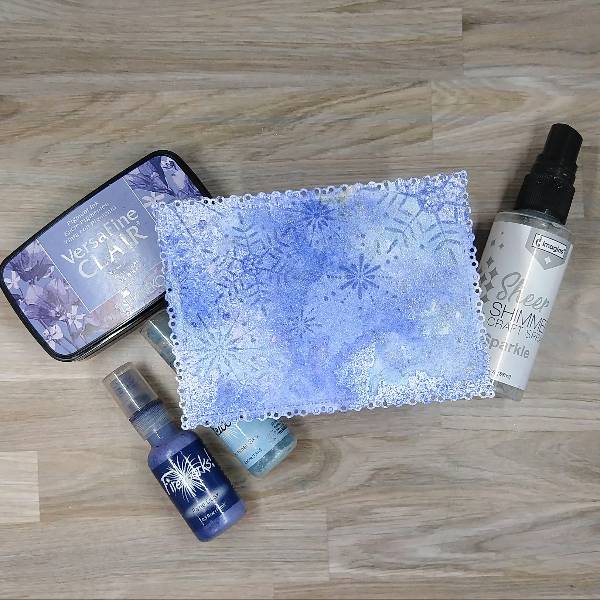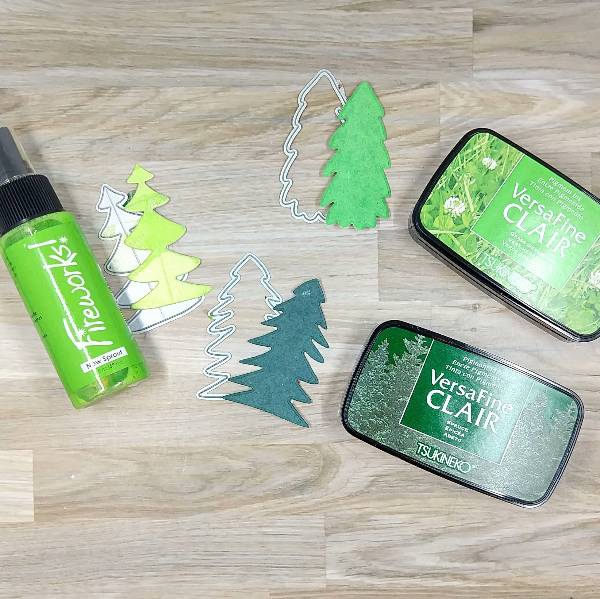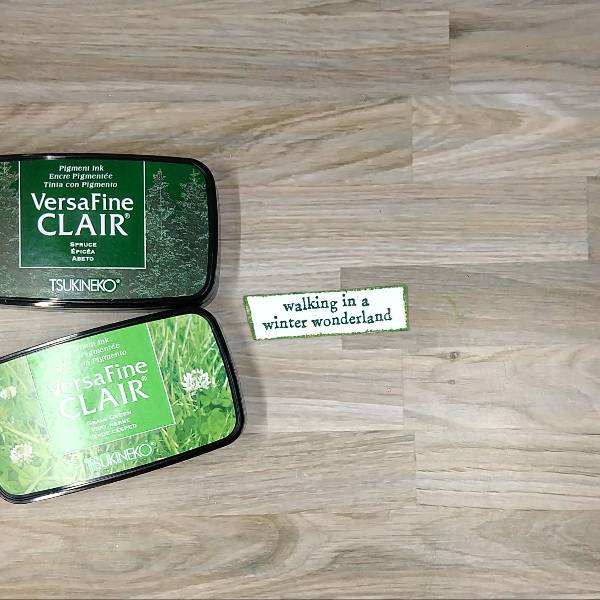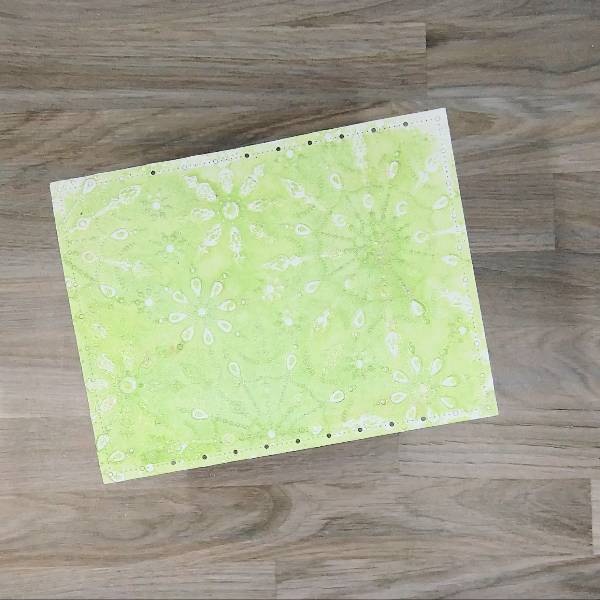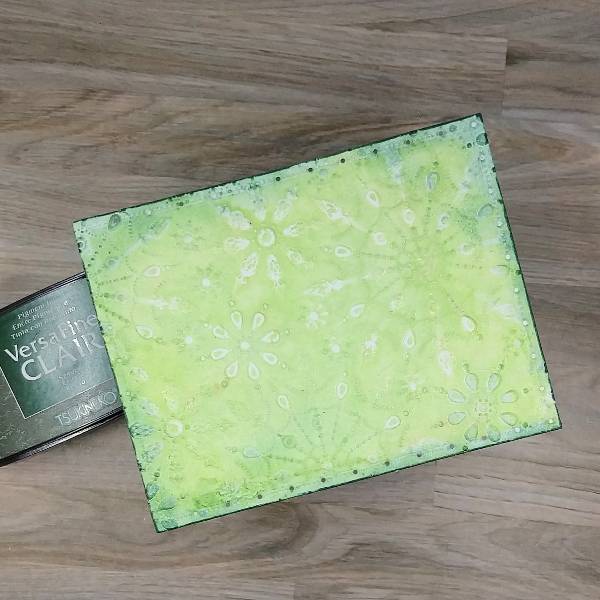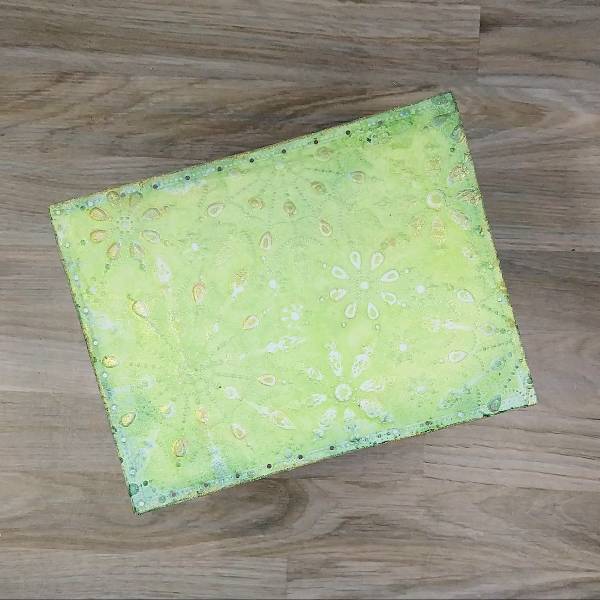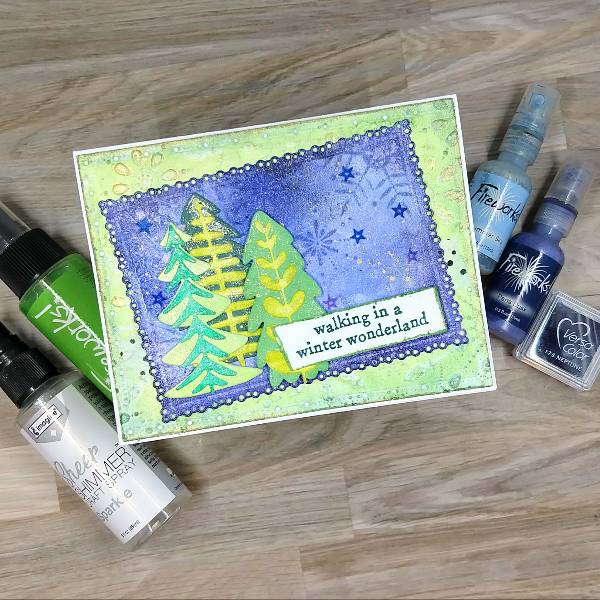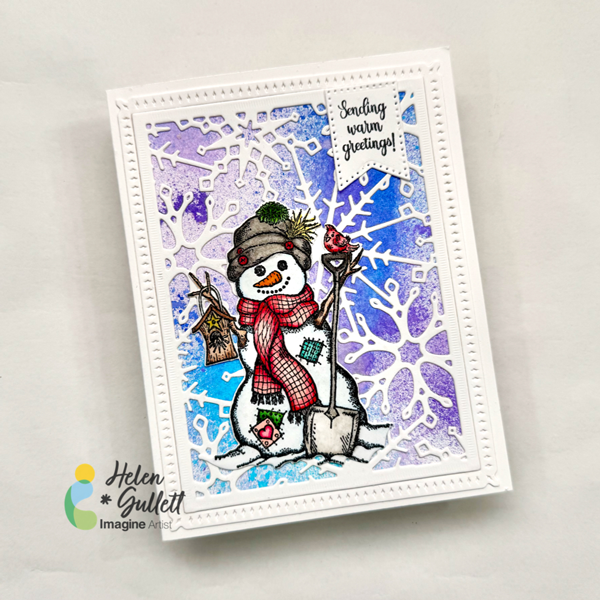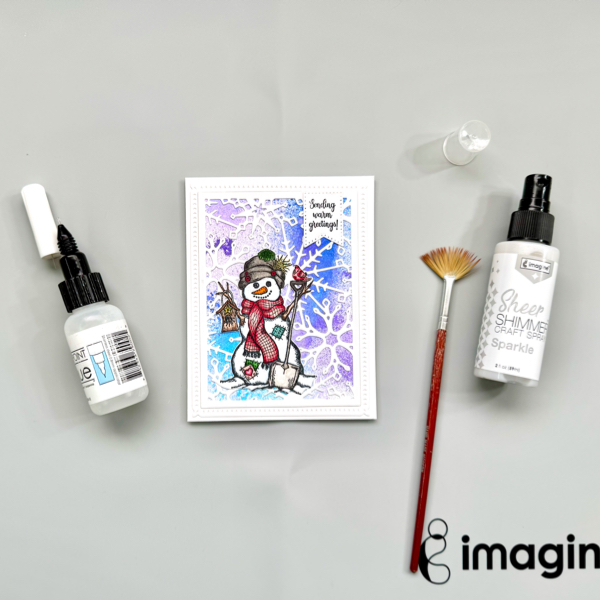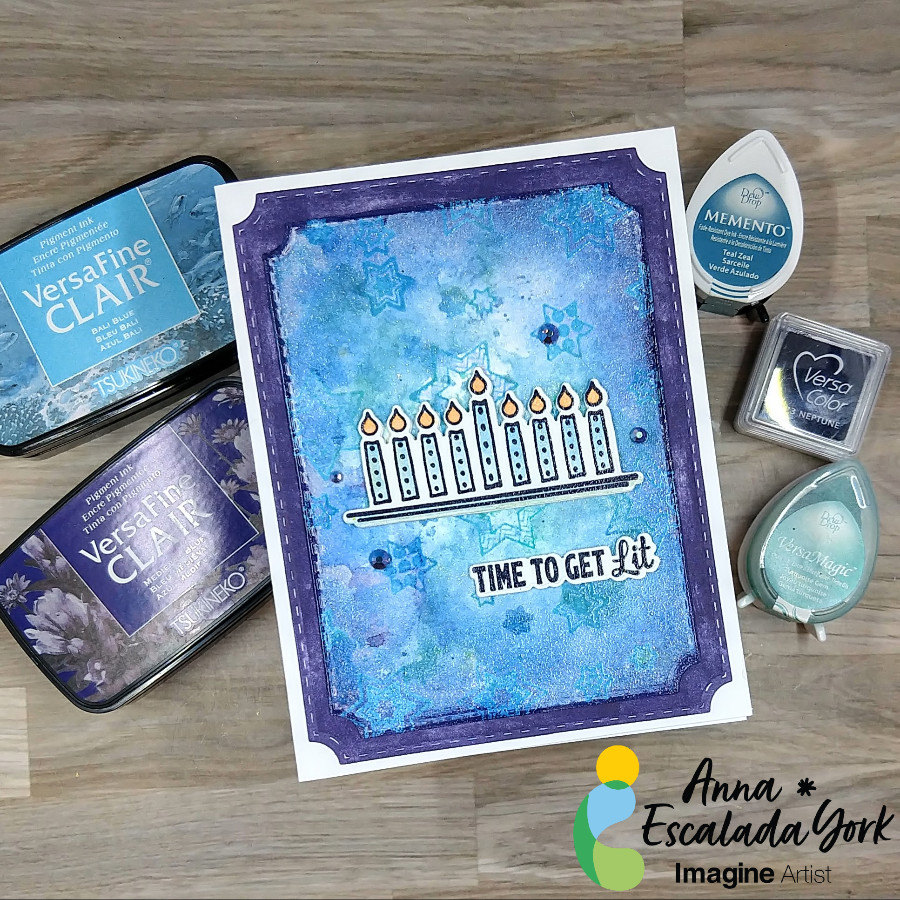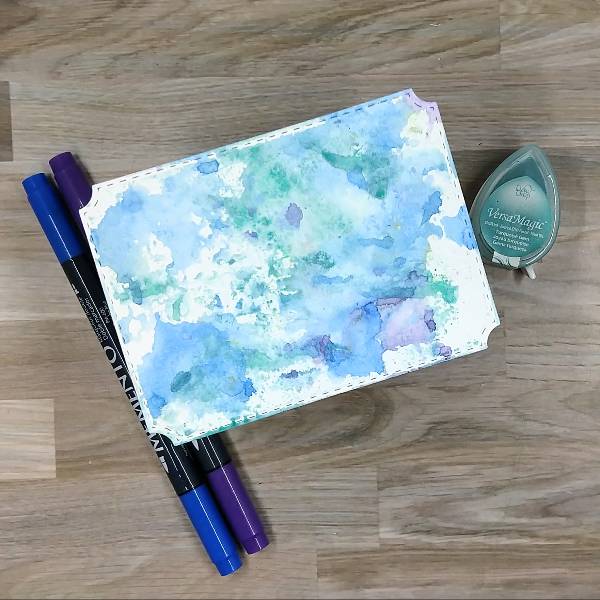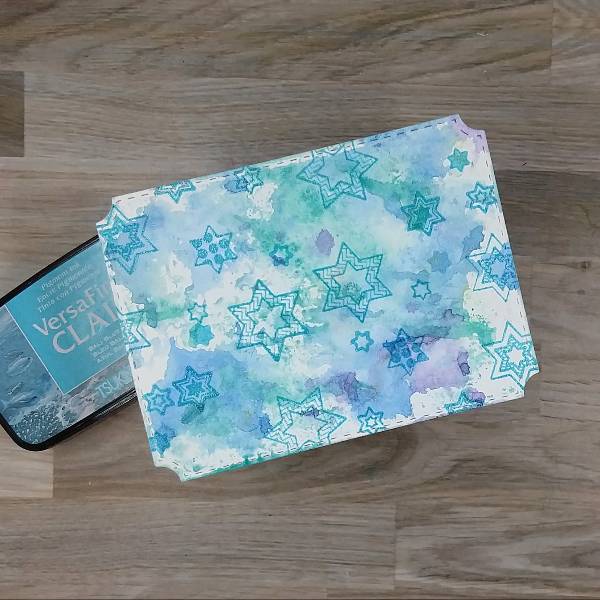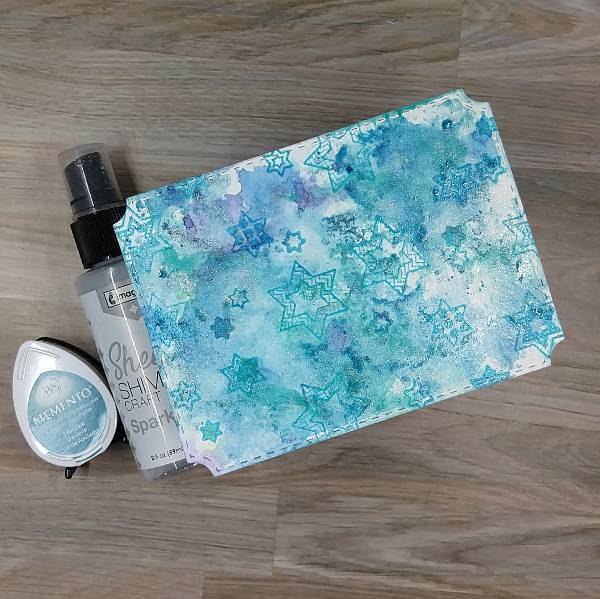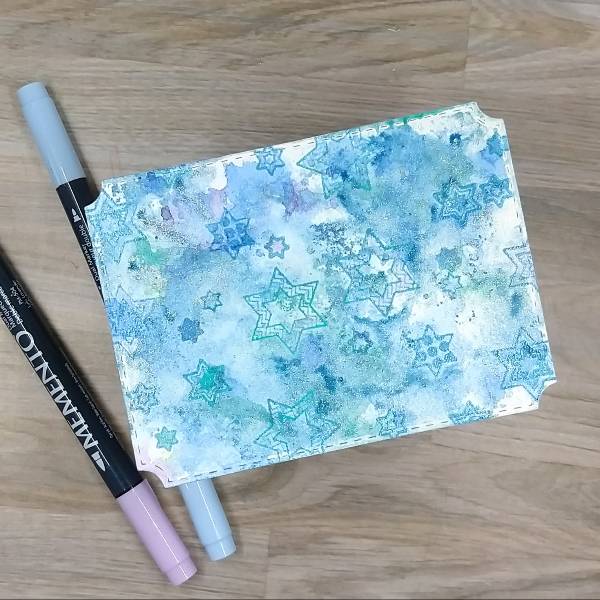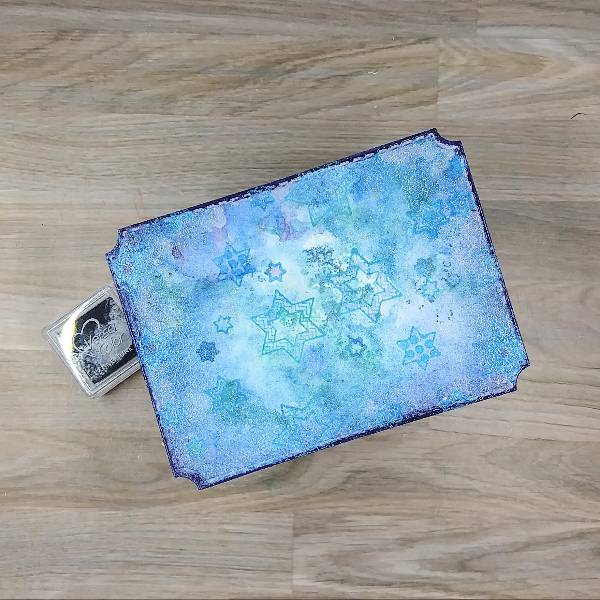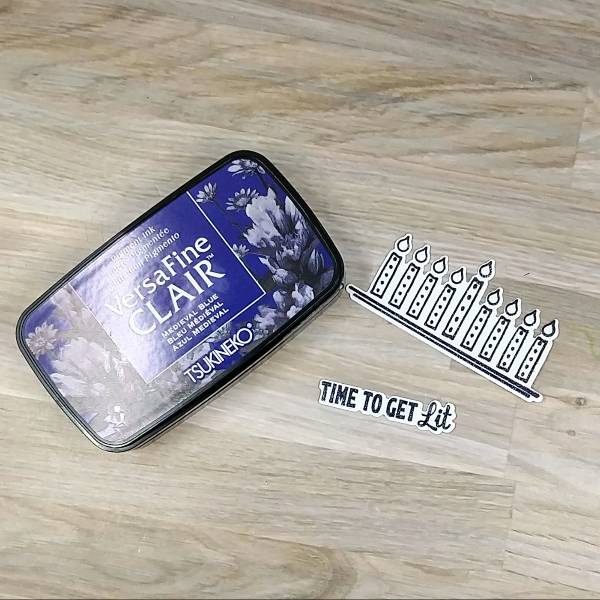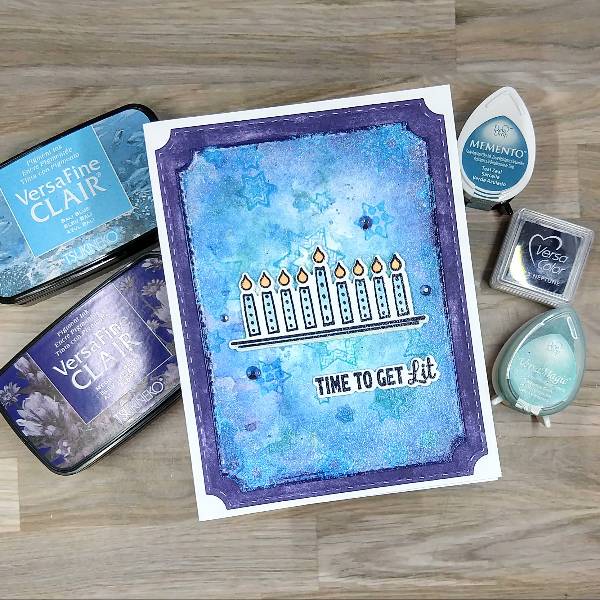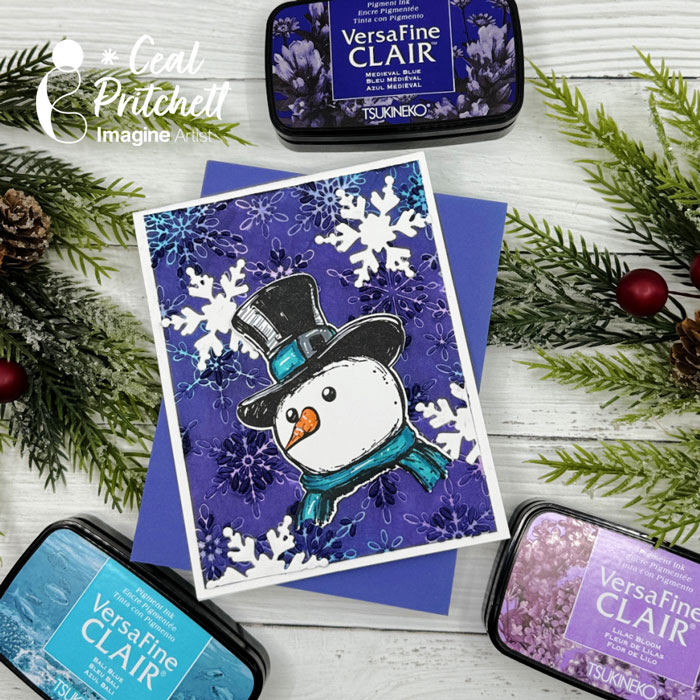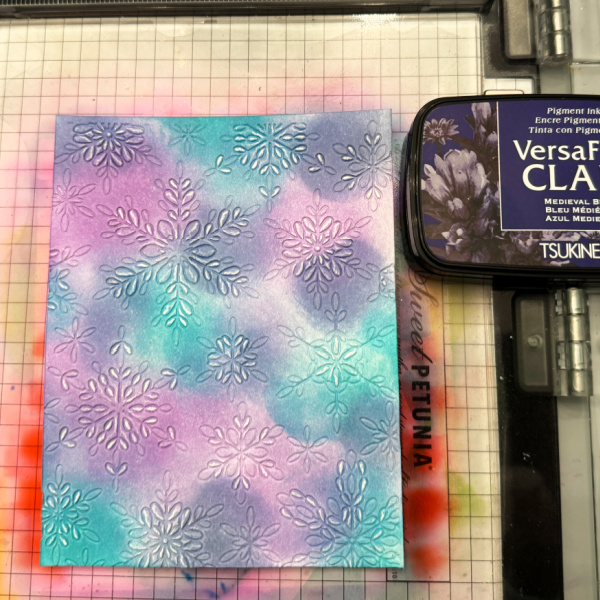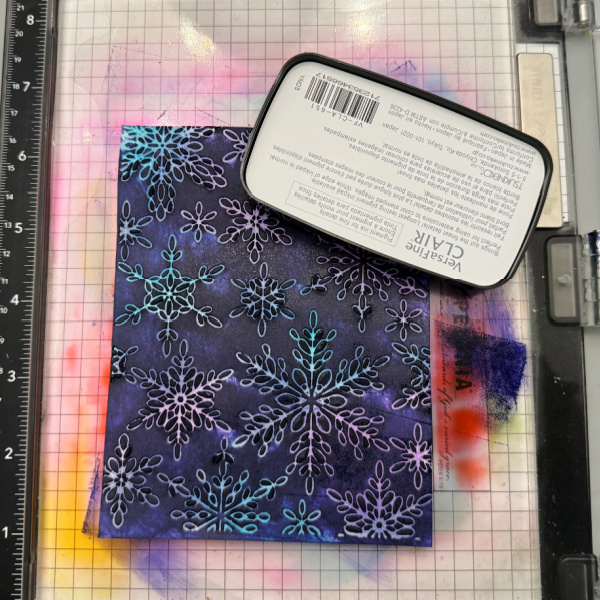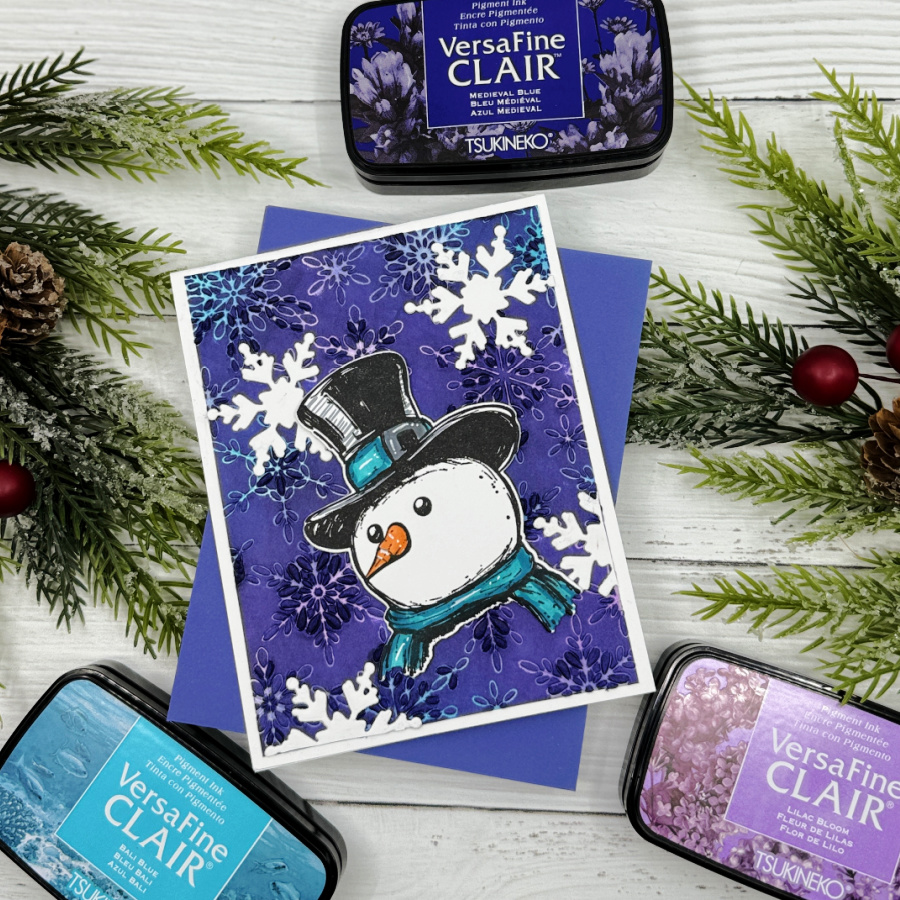
Hi crafty friends! It’s Ceal. I am back with a card using the Black Out Technique but I used blue ink instead.
Skill Level: Intermediate Time: 30 to 45 Minutes
Directions:
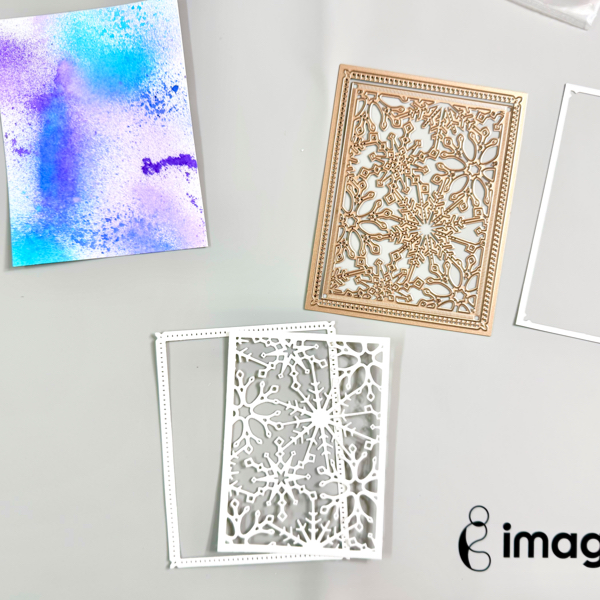
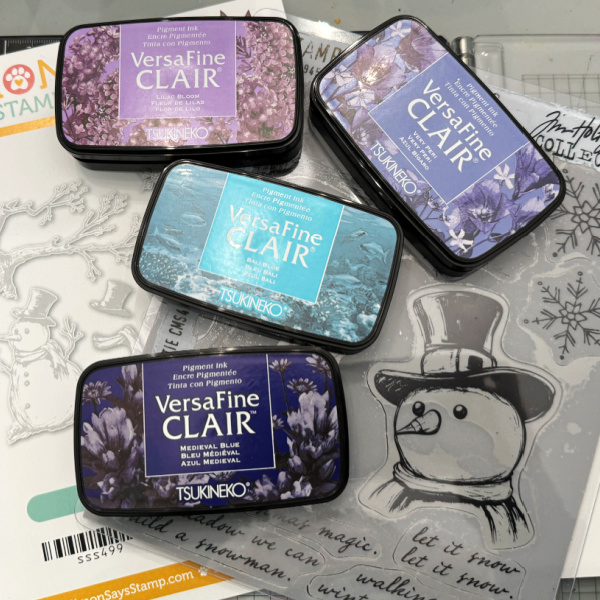
Gather your supplies. You will need 3 softer inks and 1 dark ink. A snowflake 3D embossing folder, a snowman stamp set and coordinating dies.
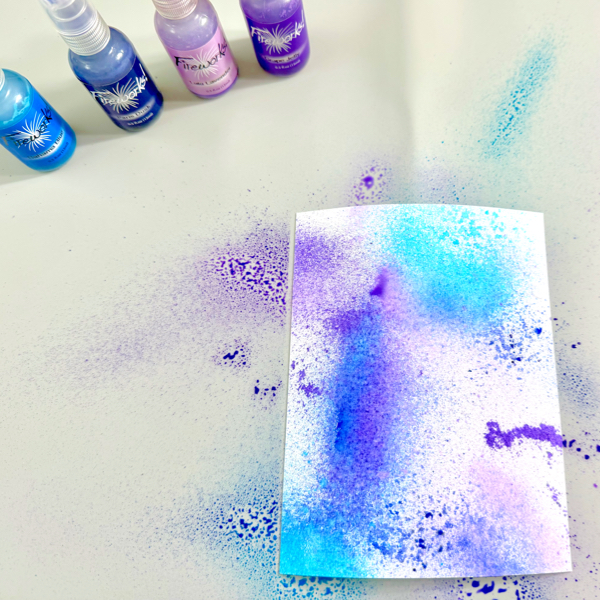
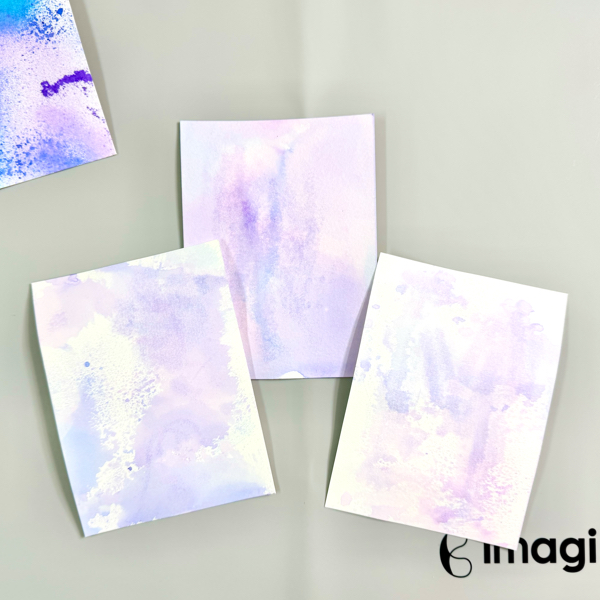
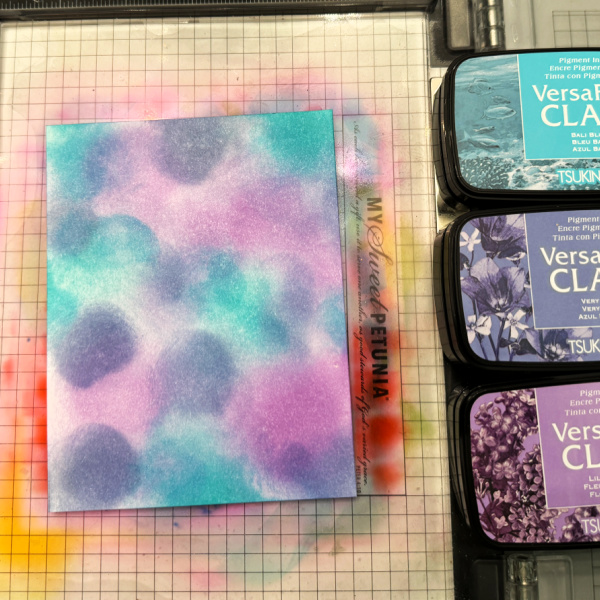
Step 1: Using the three lighter colors randomly add them to a white panel cut to A2 size.
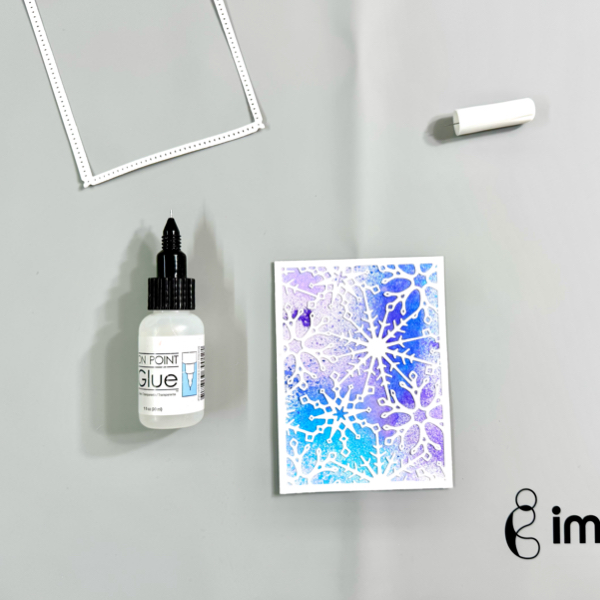
Step 2: Place the blended panel inside of the 3D embossing folder and run through the die cutting machine.
Step 3: Using the darker ink, rub across the entire embossed panel.
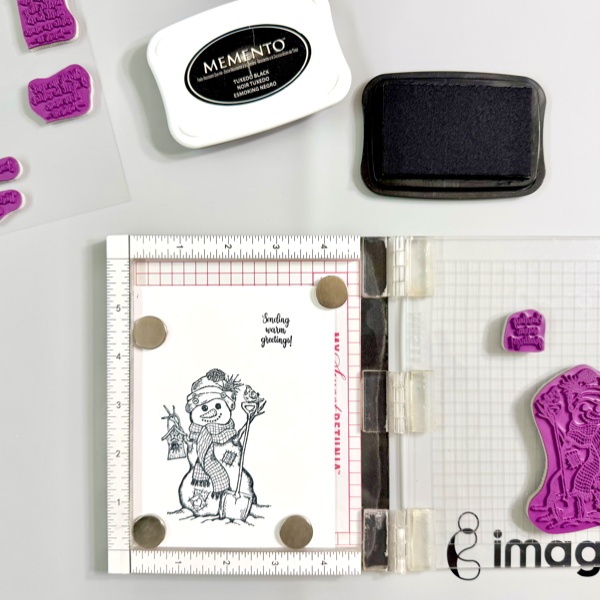
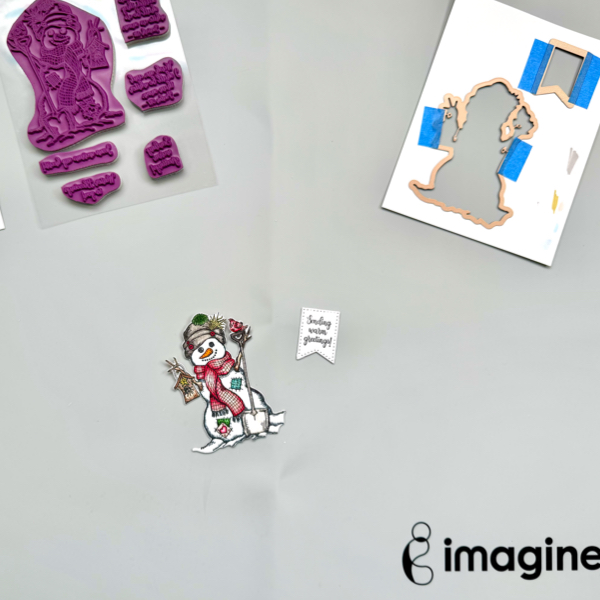
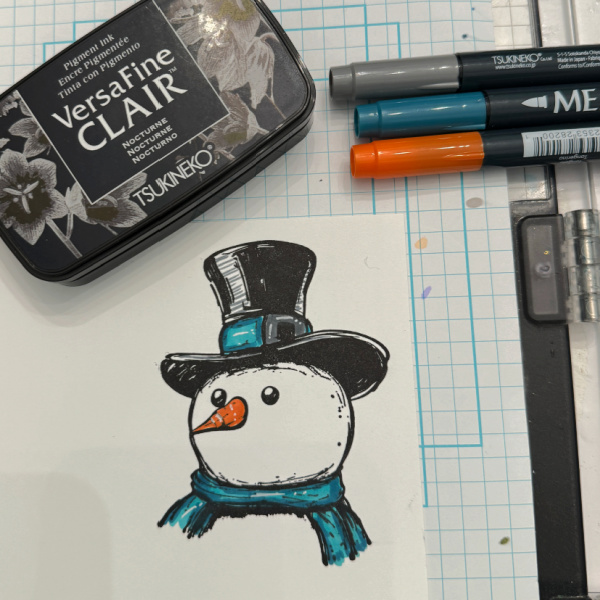
Step 4: Stamp, color and cut out the snowman image along with some diecut snowflakes. Places the pieces on the embossed panel and add to the card base.
Mr. Frostie stamp set – Stampers Anonymous/Tim Holtz Mr. Frostie coordinating dies Snowflake 3D embossing folder – Simon Says Stamp Neenah Solar White cardstock – CutCardStock
Hello crafty friends! It’s the time of the year to start making some Holiday projects. As for me, I love making and sending handmade Christmas cards. Today, I wanna share how to make this CAS Christmas Poinsettia Card.
Let’s get crafting!
Skill: Intermediate Time: 15-20 minutes
Direction:
Step 1
Cut out a piece of any color cardstock into 4.25 inch x 5.5 inch that you want to use as your background panel.
I used all the words on the stamp set I used so I taped the whole sheet on the stamping tool lid instead of taking it out one by one. You can use any word stamp set you have to create a similar background pattern.
Stamp the words on the cardstock using VersaMark Dazzle. Make sure to cover the whole panel.
Step 2
Add some darker shadow to the edges of the background panel using Memento Dew Drop ink pads and finger sponge dauber.
First, add the Lady Bug ink on the panel, then add the Rhubarb Stalk ink, and then add the Lady Bug ink again to blend them together.
Step 3
Stamp each layer of the poinsettia flower with the Delicata Golden Glitz ink.
Stamp the middle buds part of the poinsettia with the Brilliance Cosmic Copper ink. Dry the stamped images with a craft heat gun.
Cut each of the images with their matching dies, or you can fussy cut them if you don’t have the matching dies.
Step 4
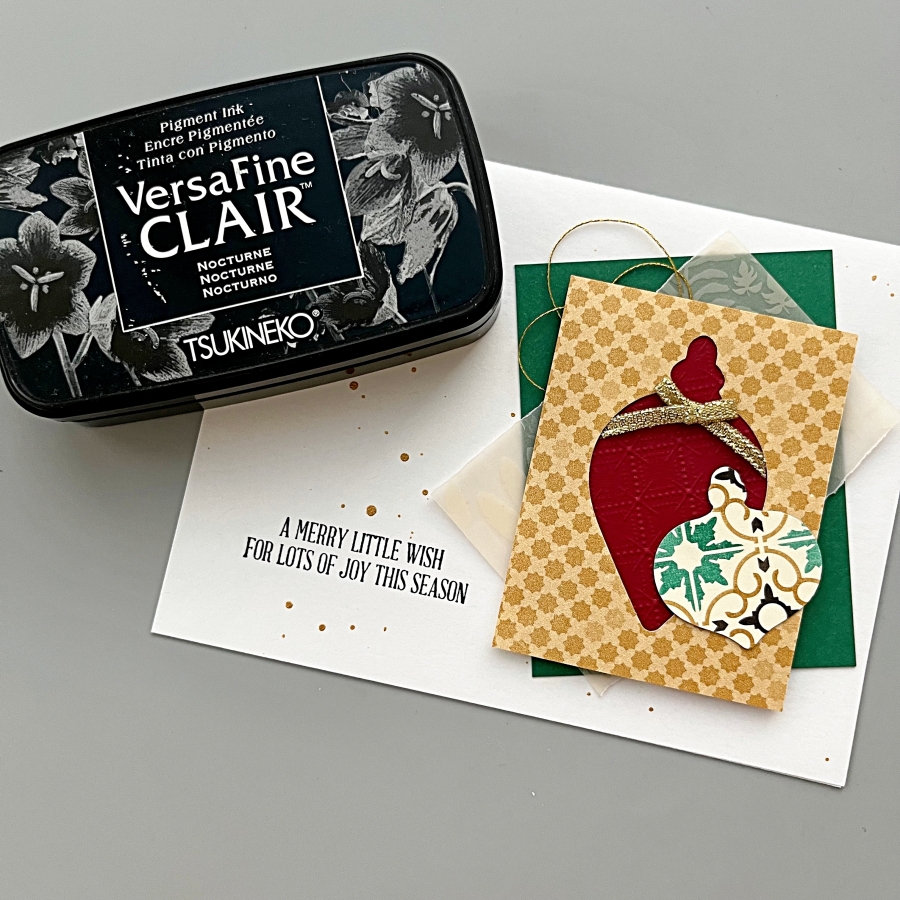
On a piece of white cardstock, stamp the sentiment with VersaFine Clair Nocturne, and then add some of the Sparkle Mboss Embossing Powder, then heat set it with a craft heat gun.
Cut the sentiment with the matching die set, or you can fussy cut it with scissors if you don’t have a matching die.
Step 5
Distress all edges of the background panel with distresser tool or scissors. Add the background panel to the card base with some of the Tear It! Tape.
Add the poinsettia flowers and the sentiment to the card with some of the fun foam and Tear It! Tape for some dimension.
Step 6
For more extra sparkle to the Christmas card, add some splatters of the Sheer Shimmer Craft Spray using a fan brush.
Use the craft heat gun to dry the splatters.
Hope this Christmas card gives you an idea to start your Holiday projects. Thank you for stopping by our blog today. Have a fabulous day!
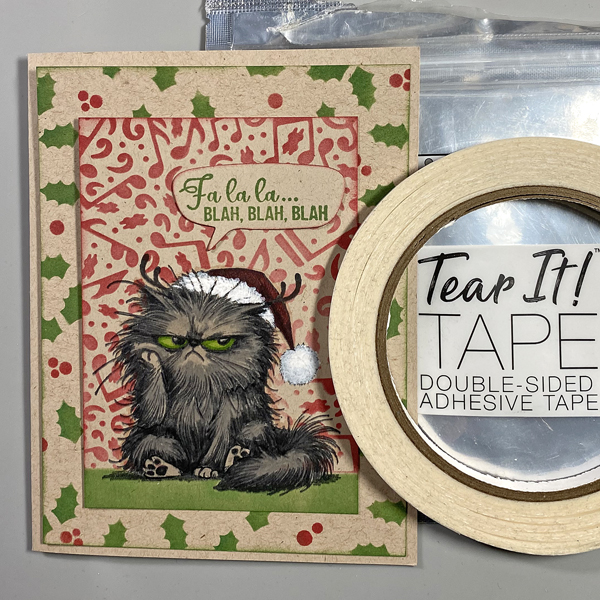
Hello crafty friends! Today I am sharing how to create this stenciled Christmas card that would be a quick and easy card to make multiples of.
Skill Level: Beginner Time: 15 to 20 minutes
Directions:
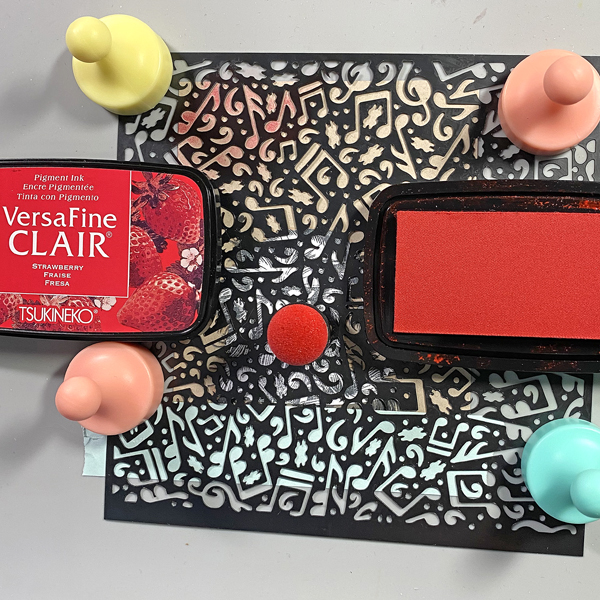
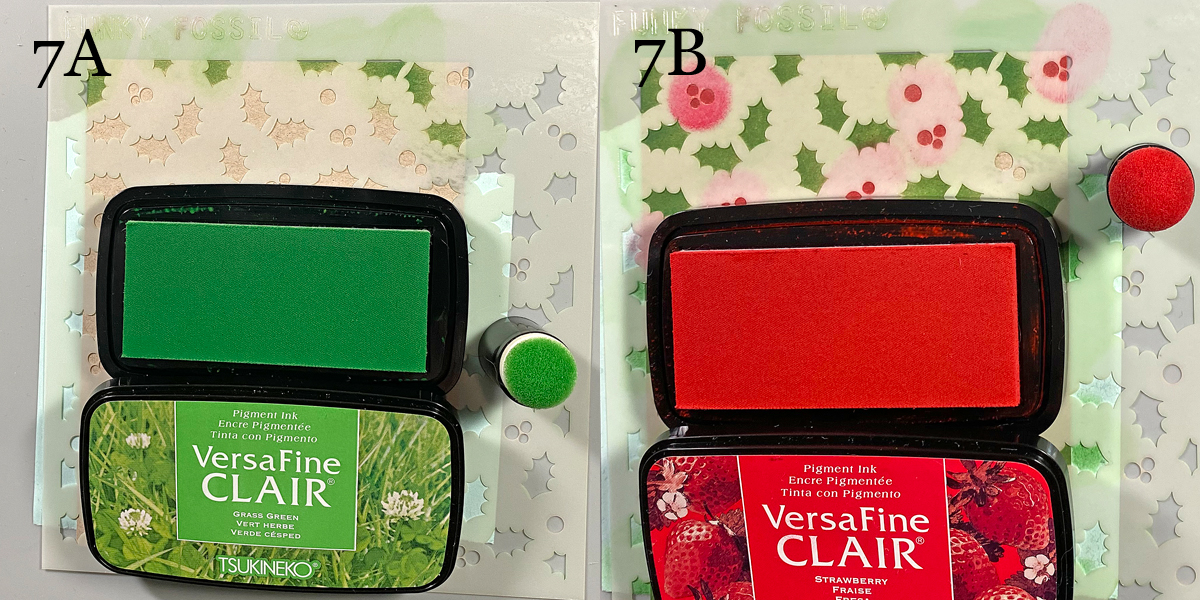
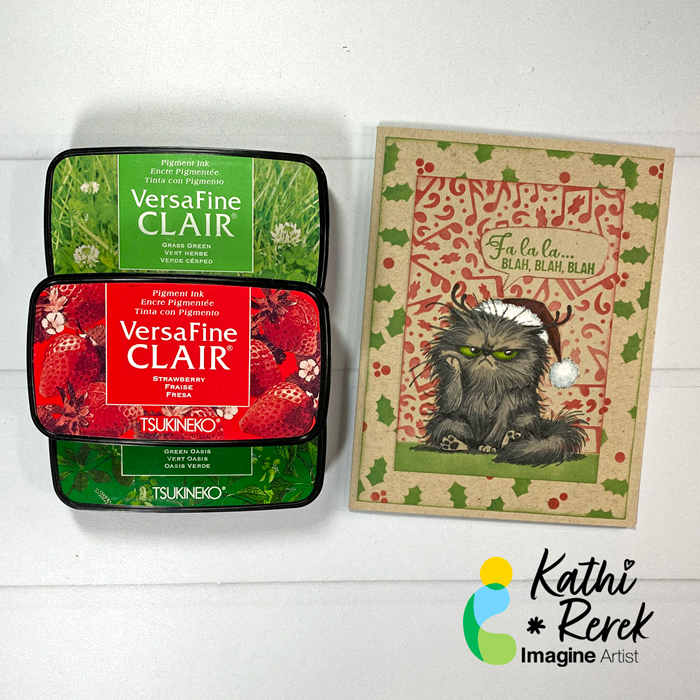
Gather your supplies. You will need several colors of ink; I used a nontraditional color along with the red and green. You will also need Layering stencils, some VersaMark ink, embossing powder and a die cut machine.
Step 1: Using a grip mat or other sticky mat to hold your panel of white cardstock. Lay you stencil over the panel and ink blend the background color.
Step 2: Remove the first stencil and place the next stencil over the panel and apply the next color. Since the second stencil is leaves, I used two different colors of green.
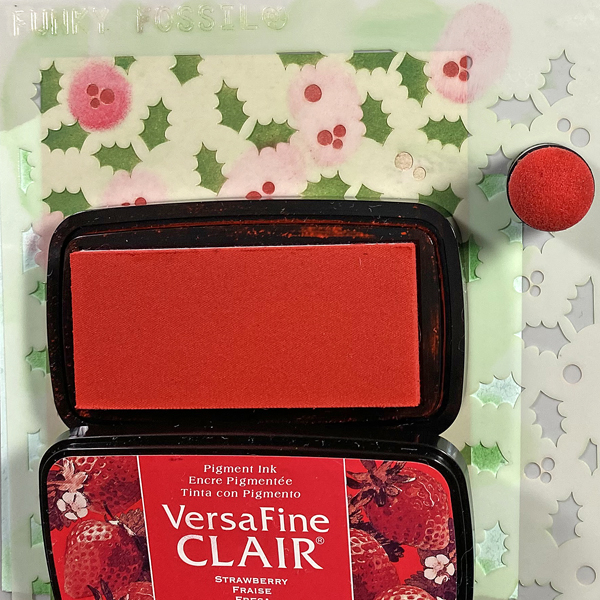
Step 3: Remove the second stencil and lay the next stencil over your panel and apply the next color. With it being berries I used our new color strawberry with is perfect for berries.
Step 4: Stamp the greeting in VersaMark ink and emboss with white powder. Die cut it out with coordinating die and assemble the card.
Other Products: Neenah Classic Crest Solar White 120lb – CutCardStock Neenah Classic Crest Solar White 80lb – CutcardStock Poppy Cardstock – PaperTrey Ink White Embossing Powder – Hero Arts Merry Christmas Stamp – Kristina Werner C9 Merry Christmas Die – Kristina Werner C9 Misti Stamping Tool – My Sweet Petunia Grip Mat – Waffle Flower crafts
Hi everyone! It’s Jessica here and I’m excited to share this elegant winter wedding card with you today. If you enjoy simple, monochromatic cards, this is the perfect card for you!
Step 1: The idea for this card is to create a winter wedding church scene inside a wedding ring. I started off by die cutting a narrow circle that will be the base of the wedding band. A trick here is to use layering dies to customize any die cut size you may need.
Step 2: Then I took my VersaMark ink pad and “stamped” it directly onto the circle die cut piece. After that, I applied a generous coat of gold embossing powder and heat set it with a heat tool. For a smoother finish, I repeated these steps again. After two coats of embossing, the gold embossed surface is shiny and smooth, which really mimics a gold wedding ring.
Step 3: The Winnie & Walter My Precious stamp set is my favorite for any diamond and gems images. I heat embossed the smaller diamond with gold Mboss powder.
Step 4: After fussy cutting the embossed diamond image, I adhered both of the wedding ring elements with On Point Glue.
Step 5: For the wedding church scene, I used the dies from Stampin’ Up!’s Snowglobe Scenes set. I die cut two pieces of the forest backgrounds and layered the church buildings with foam tape. I even added a tiny piece of vellum behind the first church die cut to create the illusion of glass windows. For the sentiment, I stamped this really adorable greeting using Brilliance Galaxy Gold ink pad.
I might be an introvert, but I do love to make scenes — in card form. Here’s a Halloween card created with VersaMagic and VersaFine Clair inks, stamping, and some die-cuts.
Skill Level: Intermediate Time: 1.5 hours
Instructions:
Step 1: Cut a piece of Bristol paper to 4.75” x 6.75”. Use the Boneyard Edgers die to cut removable sticker paper and place along the bottom of the image panel. Place low tack tape below it.
Use the 1” circle punch to punch the sticker paper and adhere it to the upper left hand side as shown.
Step 2: Use a Sponge Dauber to apply Night Sky VersaMagic Ink over the masked images onto the background. Heat set.
Step 3: Spray a little water into a small container. Squeeze a few drops of Moonlight White VersaMagic Re-inker into the pot. Use a paint brush to mix the water and the ink. Tap the inky paintbrush over the night sky background to add splatter to look like stars.
Step 4: Remove the sticker masks from the moon and from the cemetery.Smoosh the Jumbo Java VersaMagic Dewdrop Inkpad onto a piece of acetate. Lightly mist with water. Use a paintbrush to paint the tree in the graveyard. Heat set. Clean and dry the acetate.
Steps 5A and 5B: Smoosh the Hint of Pesto VersaMagic Dewdrop Inkpad onto the cleaned piece of acetate. Lightly mist with water. Use a clean paintbrush to apply green ink at the top of the hill below the tombstones, crosses, gate, and tree (5A). Use a Fantastix to apply Spanish Olive VersaMagic Ink to blend this lighter ink below the ink applied in Step 5A. Continue apply the Spanish Olive Versa Magic Ink horizontally to fill in the base of the card and create the cemetery lawn. Heat set the image panel.
Step 6: Place the image panel onto the base of a stamping platform secured with magnets and low-tack tape.
Position the clear Zombie stamps from the Zombie Party Clear Stamp Set facedown as desired on the cemetery lawn. Position the Bat Colony Clear Stamp facedown over the moon and sky.
Press the platform’s base onto the back of the stamps. Lift. Ink the stamps with Nocturne VersaFine Clair Ink and stamp. Re-ink and stamp if necessary to attain solid black images. Heat set the panel.
Step 7: Trim the image panel to 4.625” x 6.625”. Use Nocturne VersaFine Clair Ink to edge the image panel. Cut a piece of orange cardstock to 4.75” x 6.75”. Sorry that there’s no photo.
Step 8: Apply Tear It! Tape to cover the reverse of a piece of orange cardstock. Use the “Happy Halloween” sentiment dies to cut orange cardstock. Remove the tape’s backing and adhere the sentiment as shown.
Step 9: Use Tear It! Tape to adhere the layers of the card.
Hi everyone! It’s Jessica here and today I am showing you a way to step up a simple technique: heat embossing. Combine it with layering stamp sets to create images with extra dimension and shine!
Step 1: Die cut a butterfly and stamp the butterfly image with VersaMark ink pad. Cover the stamped image with Jade Pearl Mboss powder. Heat set with a heat gun. TIP: To achieve maximum coverage, re-stamp the butterfly image using a stamp positioning tool and heat set a second layer of Mboss powder.
Step 2: This Watercolor Wings stamp set contains many layering images. I stamped the second layer with VersaMark ink also, but used the Gold Mboss powder this time instead.
Step 3: Repeat the same steps for the third layer of the butterfly image. I used the Indigo Pearl Mboss powder for this final layer. It’s a rich blue color that complements the lighter Jade color very nicely. This is the final look of the embossed butterfly. I really like the pearl shine from the Jade and Indigo Mboss powders. If you have different colors and types of embossing powder, I highly recommend using them with layering stamps!
Step 4: For today’s project, I decided to decorate a gift box instead of making a card. I created a belly band around the box using black cardstock and silver glitter tape. For the thin silver strips, I cut two narrow pieces from the silver glitter tape and colored it with a grey Copic marker. You can use any alcohol marker that you have.
I hope you enjoy this simple project and feel inspired to layer embossing powders to create new looks. I really like this technique and I love experimenting with different color combinations. Thank you so much for stopping by, I’ll see you in my next tutorial!